
How to Get a Scope Signed When You Schedule on a Customer's Behalf
When you schedule an appointment on behalf of a customer and a scope of appointment is required, here's what to do to get it signed. This article covers two ways: sending the scope right away, or letting your reminder campaign handle it for you.
IN THIS ARTICLE
- Scheduling an Appointment for a Customer
- Option 1: Send the Scope Right Away in Great AEP
- Option 2: Let Scope of Appointment Reminders Handle It
Both options can be used together. Sending the scope right away doesn't stop the reminders — reminders only stop once the customer actually signs.
Scheduling an Appointment for a Customer
Sometimes you need to schedule an appointment on behalf of a customer rather than having them book it themselves. Either way, the SOA prompt appears automatically when the meeting is scheduled — it doesn't matter whether the customer books it or you book it for them.
The meeting will be scheduled whether or not the scope has been signed. Since you can't sign it for them, you have two options for getting it taken care of.
Option 1: Send the Scope Right Away in Great AEP
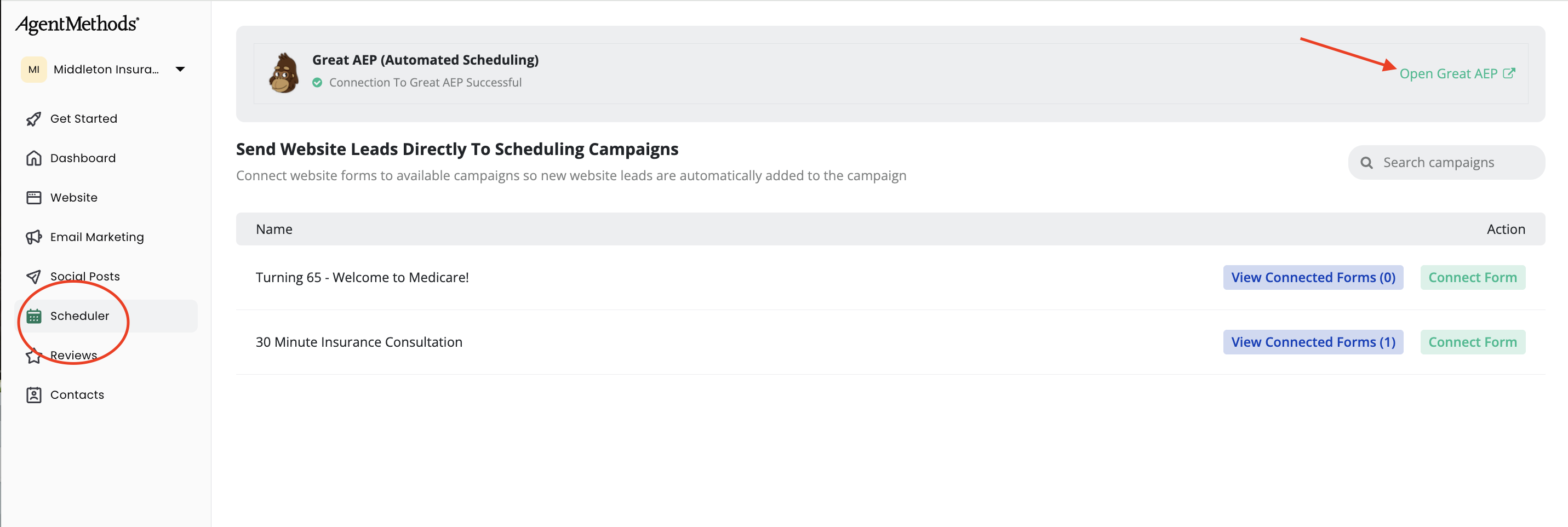
Go to your dashboard, click Scheduler, then click Open Great AEP.
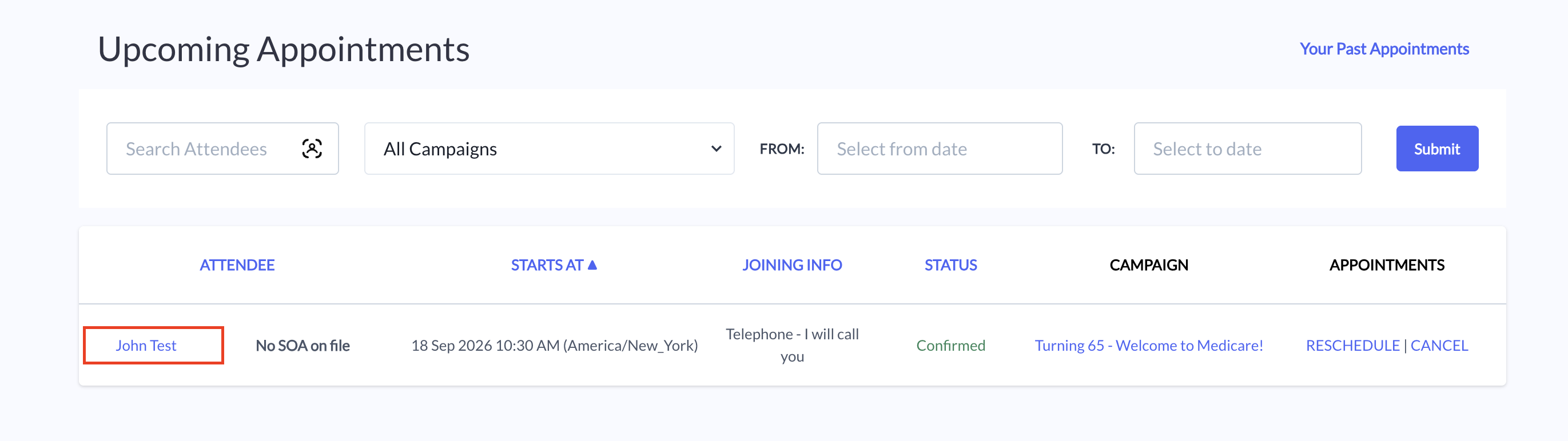
This takes you into your Appointments area, where you'll see the customer who just booked. Click their name to open their record.
Next to SOA on File, you can email or text the scope to them right then and there.
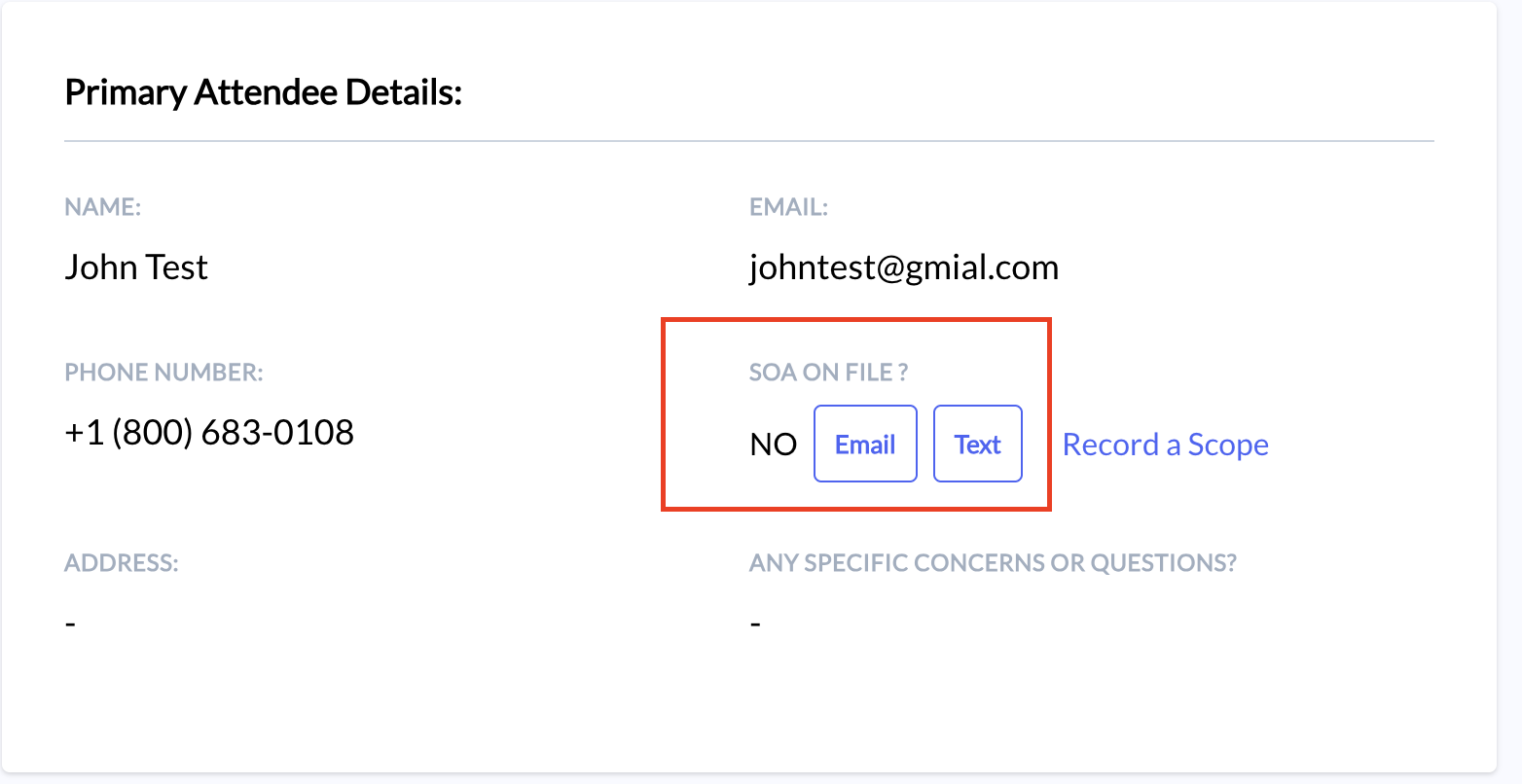
If the customer already has a signed scope, you can record it here instead of sending a new one.
Option 2: Let Scope of Appointment Reminders Handle It
If you'd rather not send the scope manually, your Scope of Appointment reminders can take care of it. As long as they're included in the campaign, the customer will get them automatically until they sign.
To check or set this up, go into a campaign and open the Reminders section. You'll see Scope of Appointment reminders listed separately from regular appointment reminders.
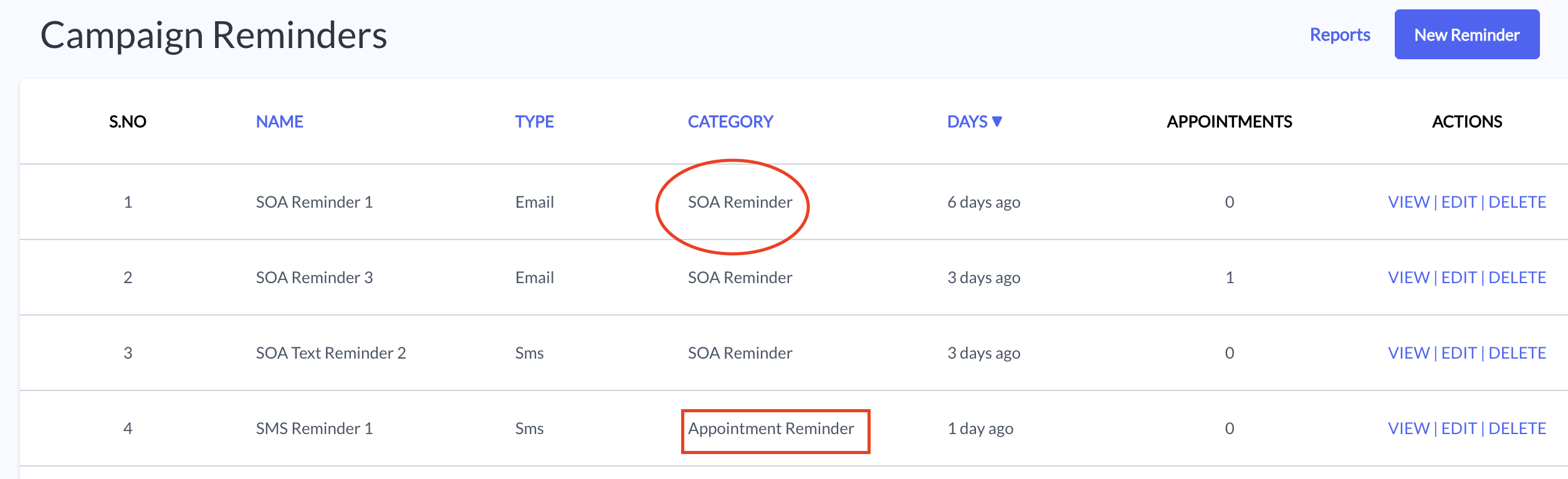
Once the customer signs, the Scope of Appointment reminders stop — but they'll keep getting the regular appointment reminders as scheduled.
Still have questions about scheduling or scope of appointment reminders? Reach out to our support team, we're happy to help! 🙂