
Sending Automated Birthday Emails
Birthday emails let you automatically send a personalized message to your contacts on (or around) their birthday - no manual work required. Once you've added birthdays to your contacts and set up the automation, AgentMethods handles the scheduling and sending for you. 🎂
IN THIS ARTICLE
- Adding Birthdays to Your Contacts
- Setting Up Automated Birthday Emails
- Managing Scheduled Birthday Emails
Before you can send birthday emails, your contacts need to have a birthday on file. Not sure how to add or import contacts? Check out this article for step-by-step instructions.
Adding Birthdays to Your Contacts
If you have a connected CRM integration, birthdays should already be syncing in automatically for contacts that have them on file in your CRM. You can check your contacts to see if birthdays are already populated before uploading a file.
If you do not have a connected CRM, the easiest way to add birthdays in bulk is to upload a contact file that includes a birthday column. When you upload the file, your contacts won't be duplicated - any matching contacts will simply be merged with the new birthday info added.
Format birthdays as a two-digit month, two-digit day, and four-digit year (MM/DD/YYYY) for the best results.
Setting Up Automated Birthday Emails
Once your contacts have birthdays on file, you're ready to turn on the automation.
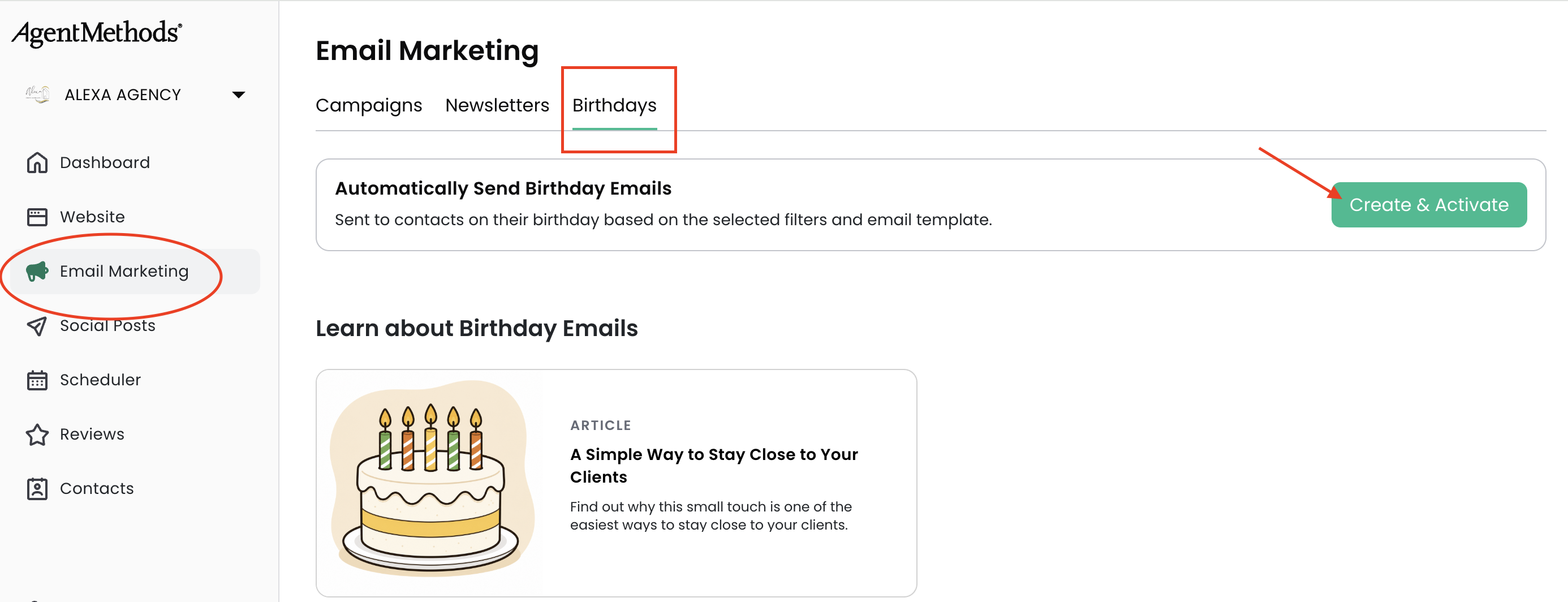
From your dashboard, click Email Marketing, then select Birthdays along the top. Click the Create and Activate button to begin setting up your birthday email.
Choosing Your Audience
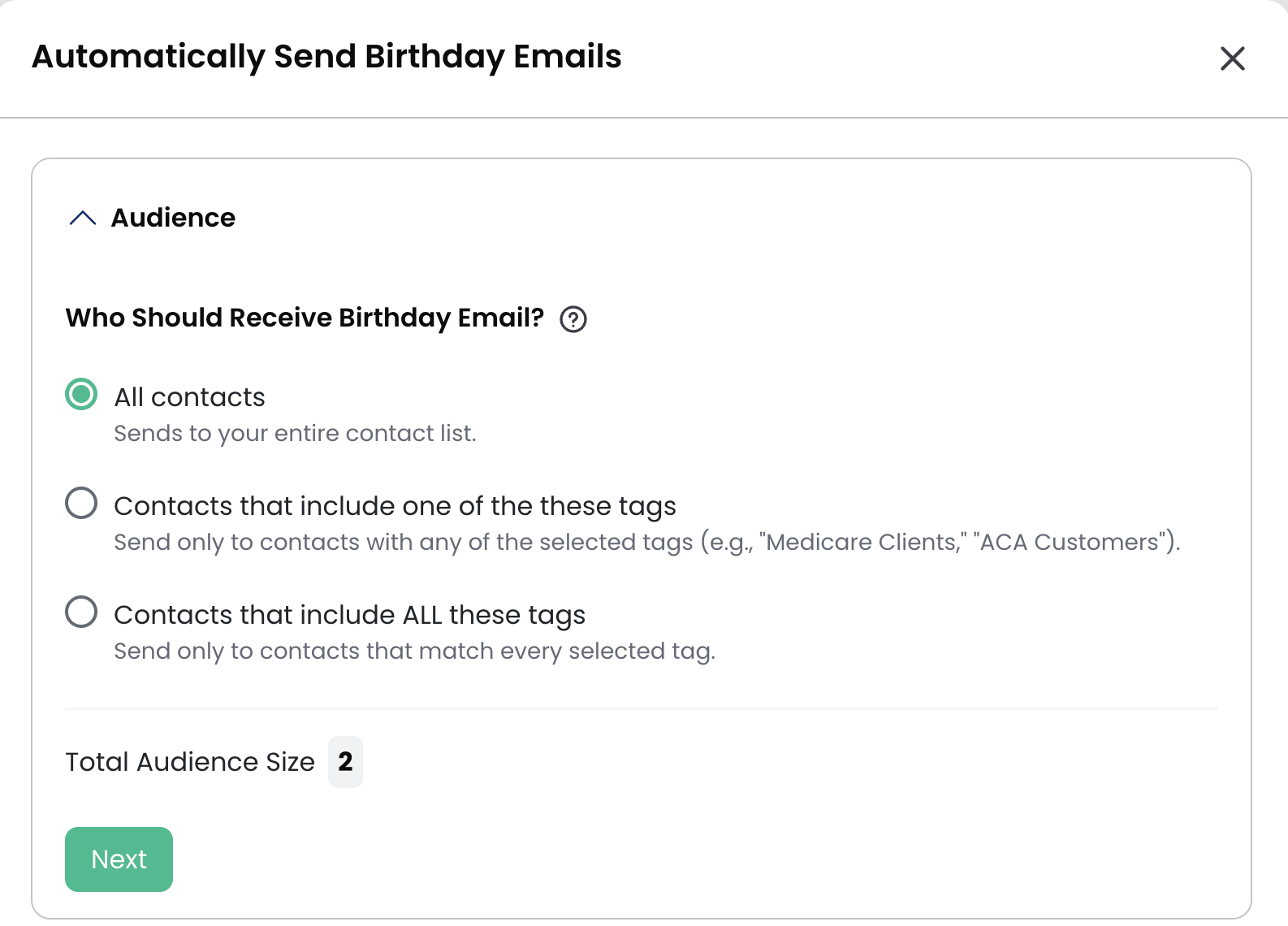
First, choose who should receive the birthday email. You can send it to:
- All of your contacts
- Contacts that include one of your selected tags
- Contacts that include all of your selected tags
Once you've selected your audience, click Next.
Customizing the Email
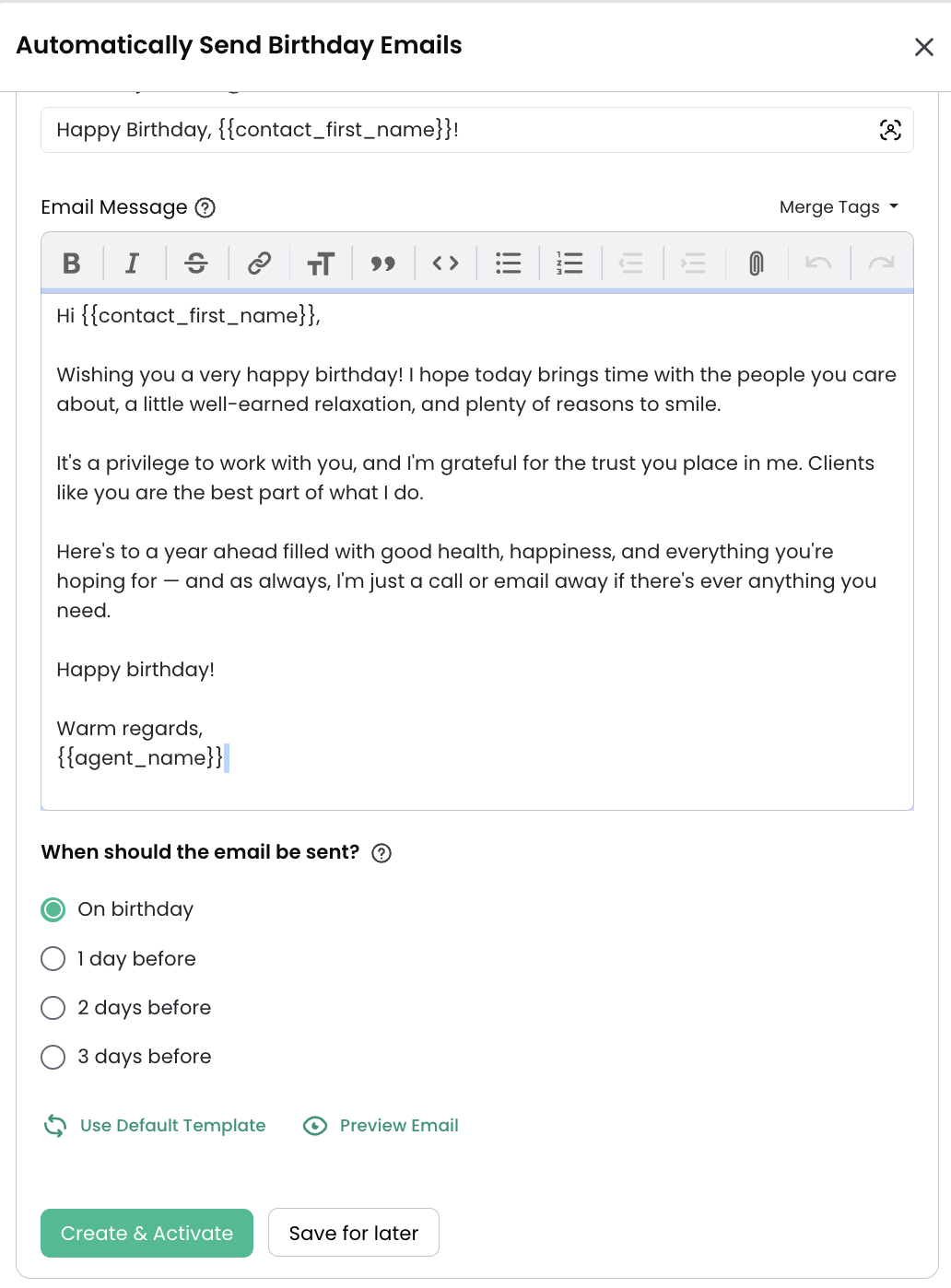
A template is created for you that includes merge tags, like the contact's first name and your name, so each email feels personal. From here, you can customize the rest of the message however you'd like.
Choosing When It Sends
Next, choose when the email should go out. You can choose to send it:
- On their birthday
- 1 day before
- 2 days before
- 3 days before
When you're ready, click Create and Activate. This schedules all of your birthday emails based on the birthdays currently in your contacts.
Managing Scheduled Birthday Emails
Birthday emails show up in your scheduled queue based on the current month. If a contact's birthday (or the send date) falls within the current month, it will appear as scheduled.
Once your birthday emails are scheduled, you can remove an individual email from the queue at any time if you need to.
Still have questions? Contact our support team here. Happy sending - and happy birthday to your contacts! 🎉