
Understanding Page Components (Using Your Homepage as an Example)
Page components are the building blocks of your website. In this guide, we’ll use your homepage as an example to show how components work, but the same concept applies to any page on your site.
IN THIS ARTICLE
- Video Walkthrough
- What Are Page Components?
- How to Open the Page Builder
- How to Work with Components
- Publish Your Changes
- Related Guides
Tip: Once you understand how components work on your homepage, you'll be able to use them on any page of your website.
Video Walkthrough
Watch the video below for a quick overview of how page components work and how they help you build and customize your website.
What Are Page Components?
Components are flexible sections that make up the layout of your website pages. Each component represents a section of content, such as a headline, image, testimonial area, call to action, or contact section.
Your homepage and other pages are built by stacking these components on top of each other. This gives you flexibility to create a layout that fits your business and highlights the information that matters most.
Think of components as the building blocks of your website. You can combine them in different ways to create the layout you want.
How to Open the Page Builder
To edit your homepage or any other page on your website:
- Log in to your dashboard
- Click Website in the left-hand menu
- Select Manage Pages
- Choose the Section that contains the page you want to edit
- Click the page you want to edit
- Click Edit
This will open the page builder, where you can view and work with the components on that page.

How to Work with Components
Once you open the page builder, you can work with the components already on the page or add new ones as needed.
Edit Existing Components
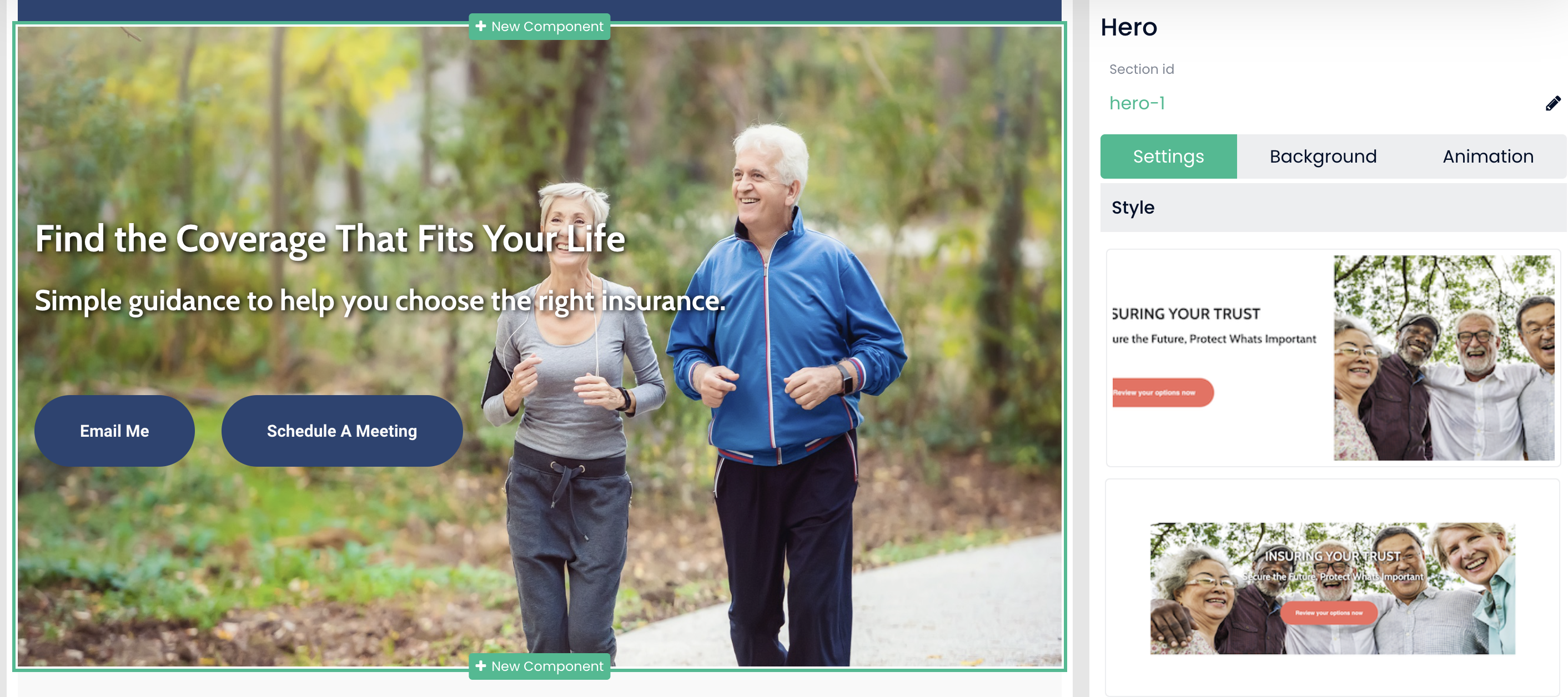
When you click into a component, a border will appear around it so you can see which section you are editing.
On the right-hand side, you’ll see options related to that component. Depending on the type of component, you may be able to update text, images, buttons, layout settings, and more.
Add, Move, or Remove Components
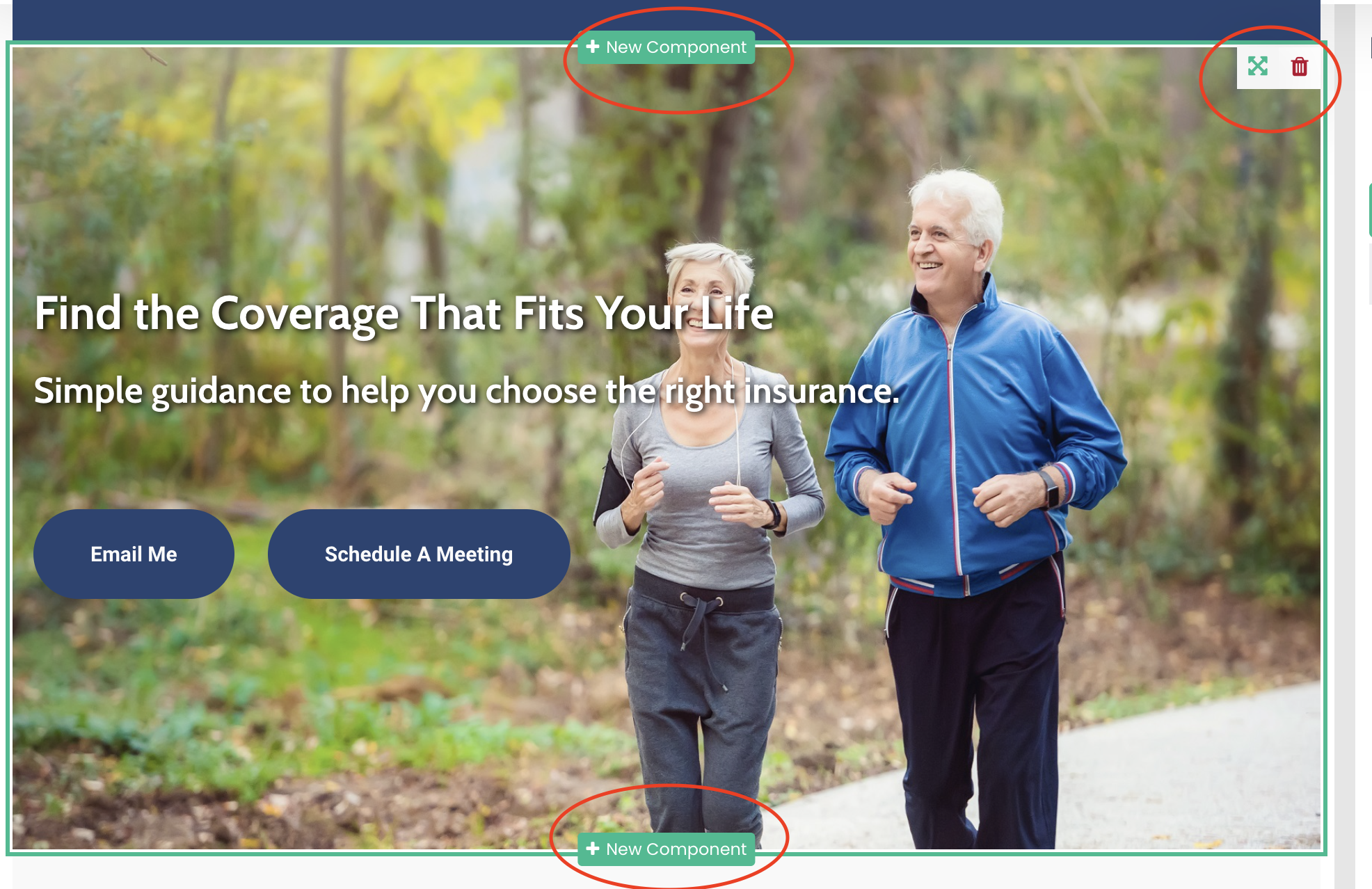
You can also customize the layout of your page by adding new components, rearranging existing ones, or removing sections you do not want to use.
This makes it easy to adjust the flow of your page and build a layout that works for your content and goals.
Publish Your Changes
After making changes to your page, be sure to click Publish. Publishing saves your updates and makes the latest version live on your website.
It’s a good idea to publish regularly while you work, especially if you step away from your computer for a bit.
You may be logged out after a period of inactivity, so remember to click Publish before stepping away.
Related Guides
If you'd like more help with specific editing tasks, these articles may be helpful:
- Editing Text and Images in a Component
- Adding Buttons and Links
- Adding Images to Your Website
- Reordering or Removing Components
- Adding New Components to a Page
Still have questions? Our support team is here to help. Keep going. Once you understand components, building and updating your site gets much easier 🙂🎉