
Select Colors and Design
Your website’s colors and design style control the overall look and feel of your site. This includes elements like navigation, buttons, and fonts.
You can update these settings at any time, and changing your design will not affect your website content, images, or pages.
IN THIS ARTICLE
Accessing Design Settings
To adjust your website’s design:
- Click Website in the left-hand menu.
- Select Select Design at the top of the page.
From here, you’ll see options to update your Theme Settings and Style.
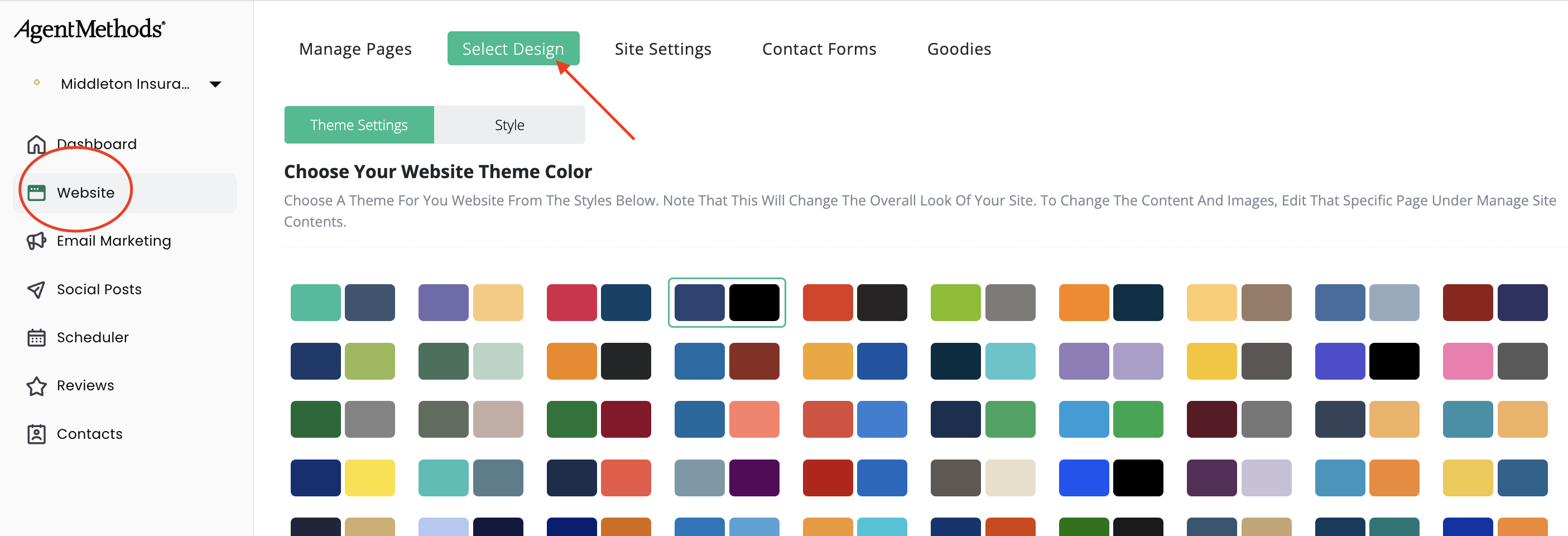
Theme Settings (Website Colors)
Under Theme Settings, you can choose the primary colors used throughout your website.
These colors are applied to elements such as:
- Buttons
- Links
- Highlights
- Other design accents
To change your colors, simply click on one of the available color options. The preview will update automatically so you can see how it looks.
You can change your colors at any time, and we can also help adjust them later to better match your logo or brand.

Style (Overall Website Design)
The Style tab controls the overall design layout of your website.
You’ll see several different style options to choose from. Each style adjusts the overall look of your site, including:
- Header navigation
- Font styles
- General layout elements
When you select a style, the Preview section will update so you can see how the navigation and design will appear on your site.

A Quick Tip
Don’t worry about getting everything perfect right away. Your website design can be changed at any time, so feel free to explore the different options and choose the one that feels right for your brand.